
2009-07-31
Bing: A New Search Engine
I know my posts are not evenly spread over time. But this time it's a short one. Some of you have been following the Yahoo! and Microsoft drama. It's been going on for a long time and I sort of lost interest. Now it seems they have some sort of agreement going on where Yahoo! is supposed to drop it's search engine for Microsofts new one, called Bing. We all know that MSN search sucks but Bing is really interesting. Among others it's picture search is great. You can search for pictures, as in Google, but when you click a link the webbpage opens up inside of the search page. Yes, pretty much like Google, but you can still see the other search results in a bar to the left, thus eliminating the need to backspace if you want to click another link. You can also preview videos from MySpace and YouTube by hovering your mouse over the video. Pretty neat! Still, Google gives the most relevant search results but Bing could be a contender.
2009-07-30
Tutorial: Make Your Images Stand Out
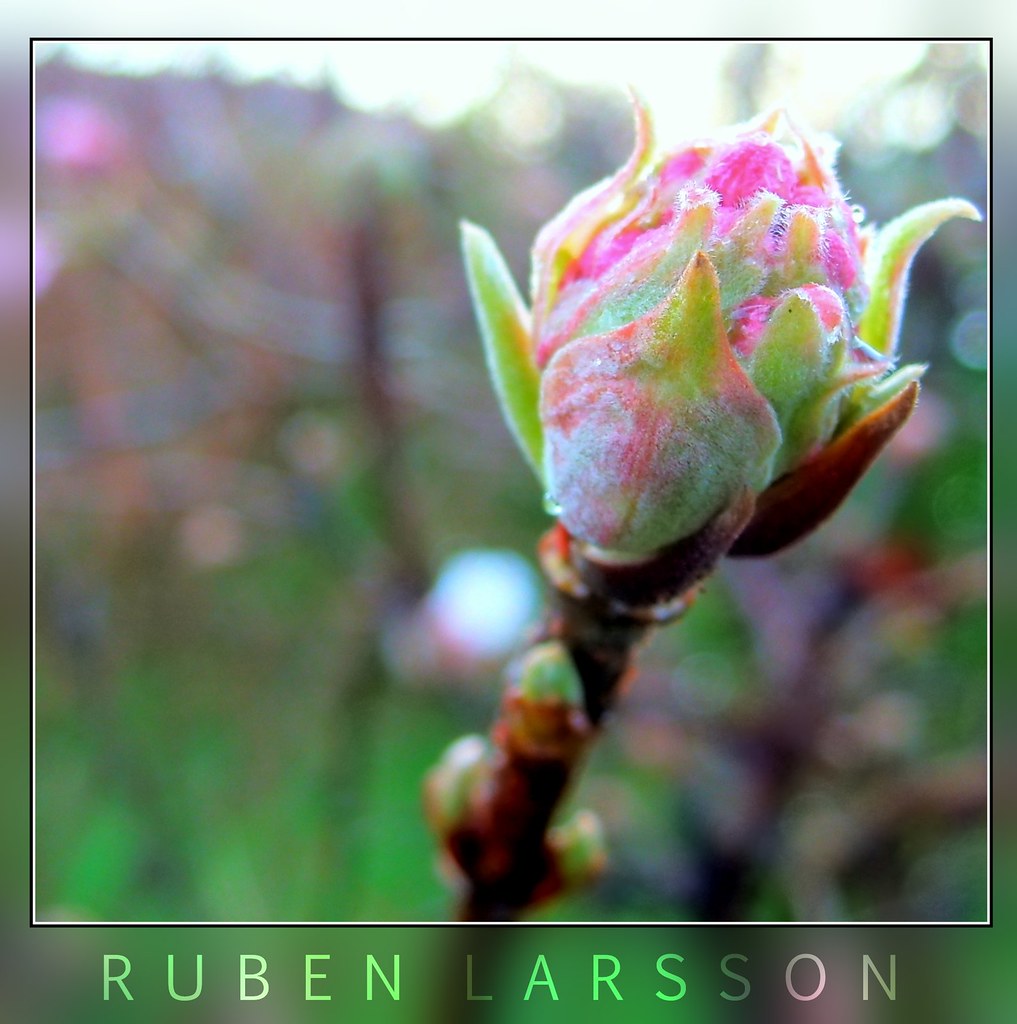
Despite the boring title this is quite important and you'll be amazed at how easy and how proffesional it looks. This isn't some fake HDR tip, it's much simpler. I have browsed some photo's on Flickr and have come to the conclusion that what you need for your image to stand out is a border.
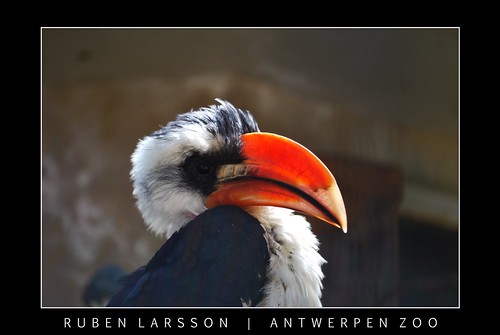

Both images are exactly the same, except for the border. Convinced? Lets start!
Stop laughing! I did the same mistake of underestimating the use of a border. If so, please tell me which you prefer of the two photos:
or
- Open your image in Paint.NET or GIMP.
- To add the first border (I used a white one, please use simple colours/gradients):
- In Paint.NET go to Effects>Render>Borders N' Shapes (if you don't have this plugin installed go to Image>Canvas Size... and increase the size of approximately 120% and remember to center the image. Then choose the rectangle, adjust the pixel width (in the top left) to about 10px (depends on picture size) and use it to create a border.
- In GIMP go to Image>Canvas Size... and increase the canvas size. Check the preview and don't forget to center the image by pressing Center. Go to Select>All to select the image and then go to Edit>Stroke Selection... Choose width (around 10px) and press Stroke.
- Add the second border:
- In Paint.NET use the fill tool to fill the appropriate colour. Remember to set the Tolerance Level (upper center) very low, about 1-3%.
- In GIMP go to Layer>Transparency>Add Alpha Channel and go to the layers palette and add a new layer. Fill the new layer with the wanted colour.
- Add some text:
- In Paint.NET create a new layer and choose the Text tool. Add the text and position it using the Marquee Tool. An alternative way is to use the Center Object plugin.
- In GIMP use the Text tool to add text and reposition it.

2009-07-05
Song of June 2009
No, I haven't forgotten to publish my favourite song of June 2009 (because I'm publishing it now)! But I've been on vacation in Belgium for a while and decided I should work on my tan instead. I will keep this short since I have loads of unpacking to do. You will also be able to see some photos under the Photos link above. So, the song of June! It's a song I've listened to quite much, especially during my revision/reading week period. The song is the main theme of the movie Gran Torino and has the same name (listen to it on Spotify). It's sung by Jamie Cullum who I've listened to before. He continues in the jazzy style that he started on his album Catching Tales. If you haven't heard him and like Michael Bublé, Katie Melua, Norah Jones etc. you should really check him out. That's all for now and happy summer holiday to all.
Subscribe to:
Posts (Atom)